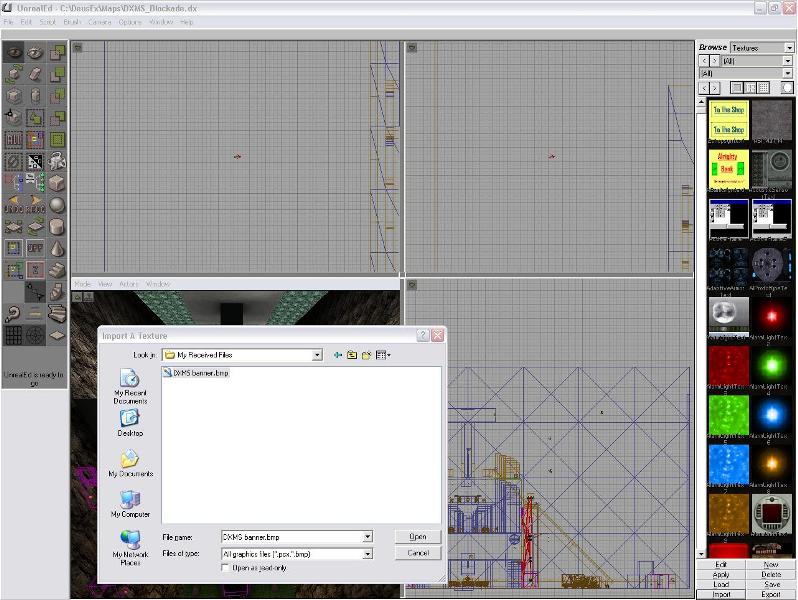
OK, here's what you have to do to add a custom texture to your map.
For this example I will be using the DXMS banner that is included in all our maps, however the same method should work for any texture you want to use, so long as it is a compatible size and file type.
Step 1.
Open up the map you want to add the texture in, and, in the Texture bar to the right, click Import.
Step 2.
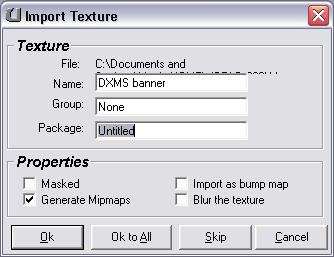
You'll be met with an 'Open File' dialog box, so find your texture. UnrealEd only accepts .bmp and .pcx files, so make sure you convert if it isnt allready the correct file type, then hit Open. A box looking like this should come up:
Step 3.
In the 'Package' box, put 'myLevel' and change the 'Name' to something without a space in it (that is meaningful, of course) and hit 'OK'.
Finaly - Finding your texture
OK, so you just imported your texture into the level, (I recommend you save it) but you don't know where to find it? Worry not, my friends!
It's really simple: in the Texture package selection box, simply find 'myLevel' and your texture will be there!

Magus